Create a New User Account
- May 4
- 1 min read
Updated: May 11
Navigate to the MGOconnect Customer Portal
Go to mgoconnect.org
Choose Customer Portal
Select your state and Jurisdiction
Step #1 - New Account Option
At the Jurisdiction portal, click “New Account” at the top of the screen

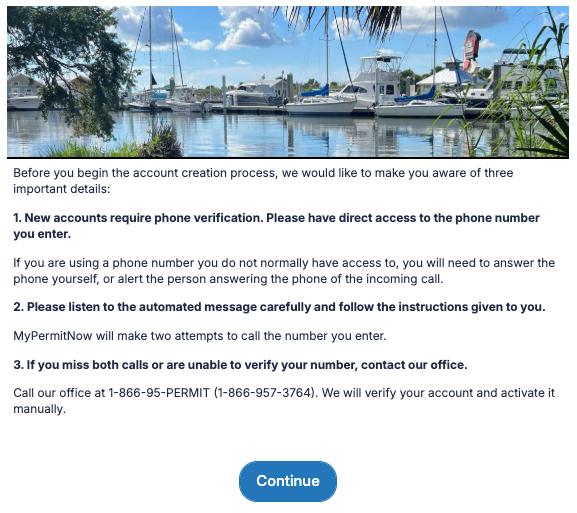
Step #2 - Verification Phone Call
You will see a disclaimer page detailing the process of the Verification Phone Call. Please note the directions on this page and follow the prompts as you complete the sign-up process.
Please see this article on the Verification Phone Call
Does MGOconnect offer multiple profiles within an account?
No. MGOconnect Customer Portal accounts operate like most online accounts across the web. They are created and maintained using an email address as the username, and the password you assign to it. There is no functionality for multiple profiles within one account, and My Government Online never recommends sharing your account or password to another individual or entity.
If someone else in your organization needs access to a Permit Project, please have them create their own account, and contact your Jurisdiction to request that persons email address be added to it, so they may have access. My Government Online may not update Project data on a Jurisdiction's behalf.